What You'll Learn
- How to troubleshoot common microphone and recording issues
- What to do when notes generate slowly
- How to handle interrupted recordings and long sessions
- Tips for maintaining note quality
Microphone Permissions
The most common issue new users encounter is the browser not having microphone access. If you see a red notice "Error: Microphone Permission is Denied" when trying to record, follow these steps:
Step 1: Enable Microphone Access in Your Browser
Normally, your browser prompts you to allow microphone access. If you accidentally denied it or the prompt didn't appear:
- Open your browser and navigate to its Settings.
- Go to Privacy and security > Site settings > Microphone.
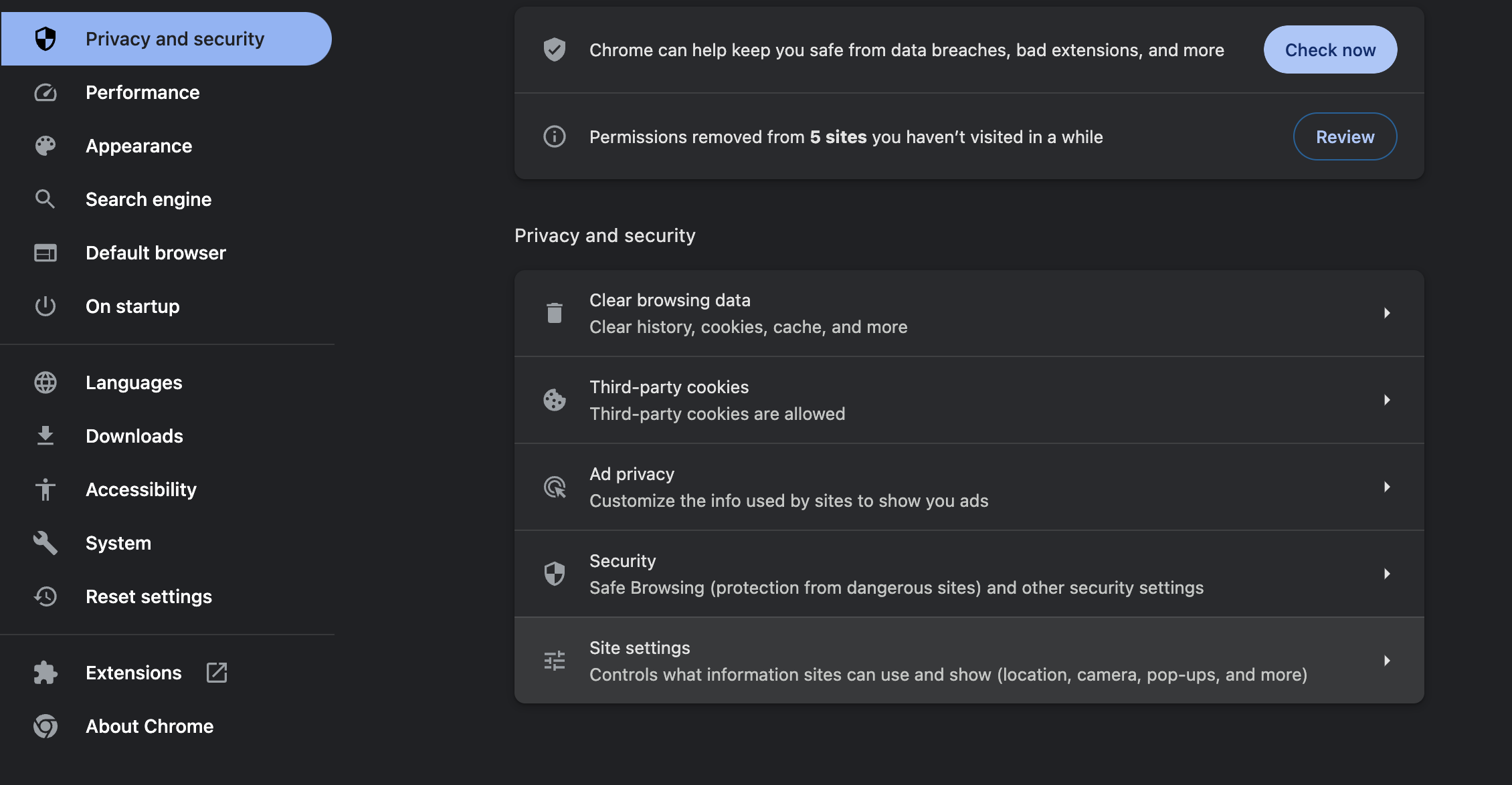
- Under "Permissions," click Microphone.
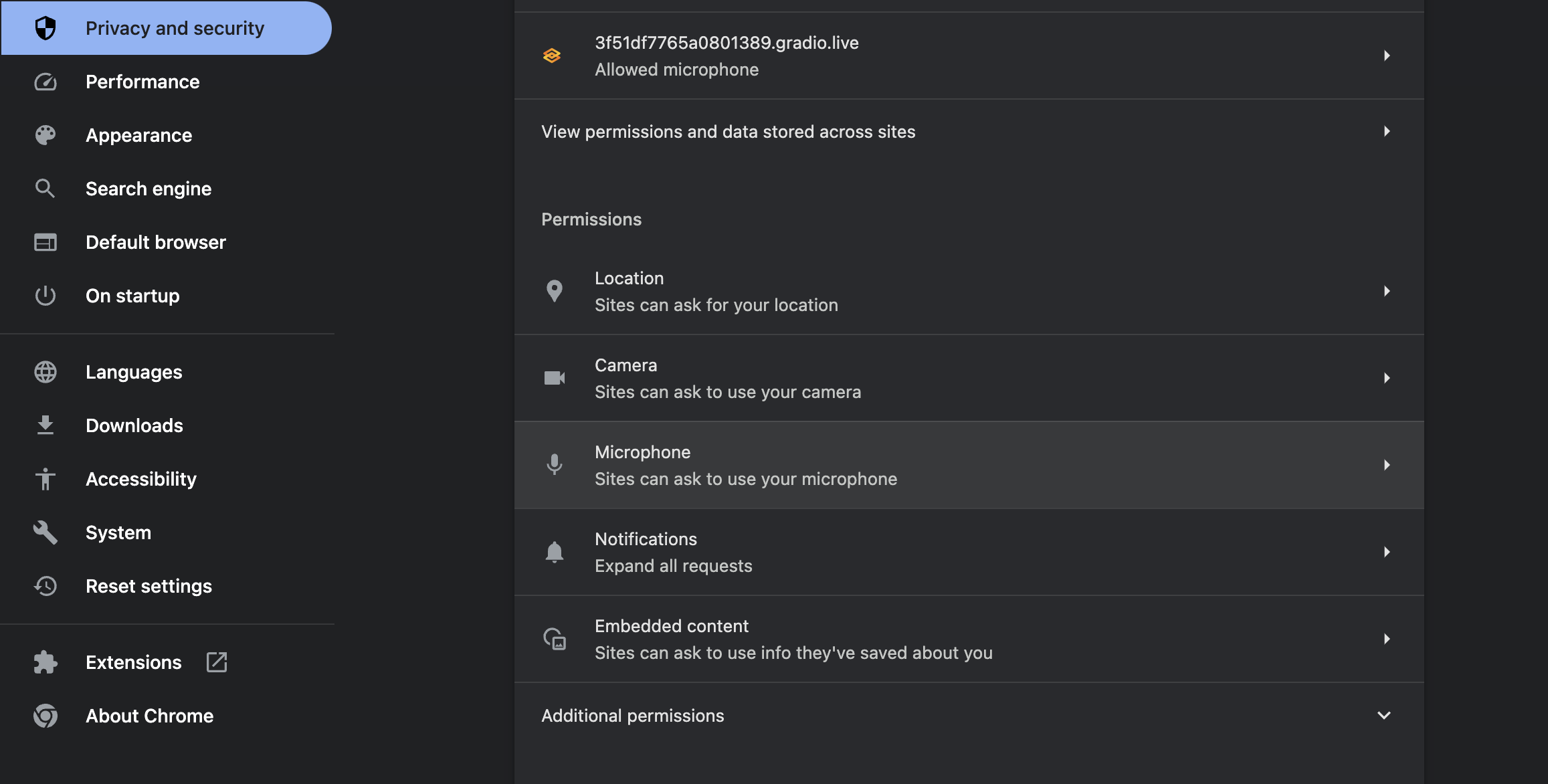
- Find and click on app.deepcura.com in the list.
- Under permissions, find the Microphone setting and select Allow.
Step 2: Select the Correct Microphone
After enabling access, make sure the correct microphone device is selected in the recording interface.
Step 3: Check System-Level Permissions
- macOS: Go to System Settings > Privacy & Security > Microphone and ensure your browser is listed and enabled.
- Windows: Go to Settings > Privacy > Microphone and confirm access is allowed.
- After changing permissions, close and reopen your browser completely.
- If issues persist, try a different browser. Chrome and Firefox offer optimal performance.
Note: If your recording exceeds 60 minutes, you will need high-speed internet upload bandwidth.
Slow Note Generation
If notes take longer than expected to generate, this is often because the system is running in its default advanced AI mode, which includes clinical insights, differential considerations, and evidence validation. Here is how to manage it:
Switch to Speed Mode for Faster Notes
Navigate to: Top bar → AI Model selector → select Speed Mode
- Open any patient file and look for the stethoscope icon in the note generation panel.
- Click it and select Speed Mode ⚡ from the options.
Speed Mode generates notes without evidence validation and journal attachments — typically 60–90 seconds faster than the default advanced mode.
Additional tips for slow generation:
- Check your internet connection — Note generation requires a stable connection.
- Consider session length — Very long recordings (over 30 minutes) take proportionally longer to process. This is normal.
- Wait for completion — Enable the "Notify when note is complete" setting in Automation Settings so you receive an audio notification when the note is ready.
Interrupted Recordings
If your computer shut off, your browser crashed, or you lost internet during a recording, DeepCura automatically saves a backup of your transcript and audio.
What You Will See
When you return to DeepCura and open the patient, you will see one of these:
- An orange INCOMPLETE badge on the transcript
- A message: "This transcript was interrupted. Click the glowing regenerate button above to recover the full session from backup audio."
- Or the note body may say: "Processing... Your transcript has been saved"
Look for the glowing recycling icon button — it pulses with an orange glow to get your attention.
How to Recover Your Note
- Open DeepCura and go to Sidebar → Patients.
- Select the patient you were recording.
- Find the note with the orange INCOMPLETE badge or "Processing... Your transcript has been saved" text.
- Click the glowing regenerate button (recycling icon with orange glow) next to the transcript.
- A menu will open: "Regenerate content from transcript".
- Select the template you want to use for the note.
- DeepCura will reprocess the backup audio and generate a full note.
What Happens Behind the Scenes
When your connection drops during recording, DeepCura:
- Saves the transcript text captured so far
- Uploads a backup audio file to secure storage
- Marks the transcript as interrupted with a connection error flag
When you click the glowing regenerate button, DeepCura fetches the backup audio and reprocesses the entire recording through the AI pipeline — so you get the same quality note as if nothing had happened.
Recovery Tips
- No data is lost — DeepCura auto-saves continuously during recording.
- You can choose any template — when regenerating, you can pick a different template than the original.
- If the backup audio is unavailable for any reason, DeepCura will fall back to the saved transcript text to generate the note.
- If you still see issues after regenerating, try refreshing the page and clicking the regenerate button again.
- Automatic reconnection — DeepCura's connection has built-in reconnection logic. If the connection drops briefly, it attempts to reconnect automatically.
- Keep the tab active — The most common cause of recording issues is the browser throttling background tabs. Keep the DeepCura tab visible and active during recording.
Note Quality Degradation
If you notice that note quality has decreased over time:
- Review your template — Template changes or optimization suggestions you accepted may have introduced unexpected behavior. Review your current template configuration.
- Check global instructions — Instructions that are too broad or conflicting can confuse the AI engine. Review and simplify them in Automation Settings.
- Audio quality — Poor microphone placement, background noise, or speaking too far from the microphone degrades transcription accuracy, which directly affects note quality.
- Session context overload — If you have "Append last visit as context" enabled and the previous visit was very long, the combined context may exceed optimal processing limits. Try disabling it for unusually long encounters.
Long Sessions
For encounters that run over 30 minutes:
- Consider splitting — For very long encounters (over 60 minutes), consider splitting the recording into two sessions to ensure optimal transcription quality.
- Stable connection — Long sessions are more susceptible to network interruptions. Use a wired connection or strong Wi-Fi if possible.
- Do not background the tab — Keep the DeepCura tab in the foreground for the duration of the recording.
Browser Compatibility
| Browser | Recommended? | Notes |
|---|---|---|
| Google Chrome | Yes | Best WebSocket and MediaRecorder support |
| Microsoft Edge | Yes | Chromium-based, works well |
| Mozilla Firefox | Yes | Fully supported |
| Safari (macOS) | Acceptable | May throttle background tabs more aggressively |
| Safari (iOS) | Acceptable | Only browser option on iOS; keep tab active |
Next: Lesson 7.2 — Workflow: Clinic vs Hospital
Next Steps
Continue to Lesson 7.2 — Workflow: Clinic vs Hospital