Module 2, Lesson 3
Prerequisites: Lesson 2.2 — Building Templates from Scratch
Estimated time: 5 minutes
What You'll Learn
- How the Prompt Healer tool optimizes your templates
- How to use “Talk to Template” for iterative voice-driven refinement
- How version history protects your templates during optimization
- How to troubleshoot underperforming templates
Why Templates Need Optimization
A template that works perfectly on the first try is rare. More often, you notice that certain sections are too verbose, others miss details you expect, or the formatting does not match your preference. DeepCura provides several tools to refine templates over time without starting from scratch.
Talk to Template (Voice Refinement)
The “Talk to Template” feature lets you refine your template through voice conversation. Open the streamlined template builder and click “Talk to Template.” Record yourself describing the changes you want — for example:
- “Make the History of Present Illness section more detailed with bullet points”
- “Add a new section called 'Risk Stratification' between Assessment and Plan”
- “Remove the Procedures section — I don't need it for follow-up visits”
The AI processes your recording against the current template and applies the edits. The updated headers and instructions appear in the builder for your review.
Version History
Every time you save changes to a template, DeepCura automatically creates a version backup. This means you can experiment freely with optimization and roll back if a change makes things worse.
To access version history:
- Click the version history icon on a template card in the gallery
- A modal shows you each saved version with its timestamp
- Select any previous version to preview it
- Click to restore it — this creates a new backup of the current version before reverting, so you never lose work
Only the template owner (or an organization admin) can view and restore version history for a given template.
Template Troubleshooting
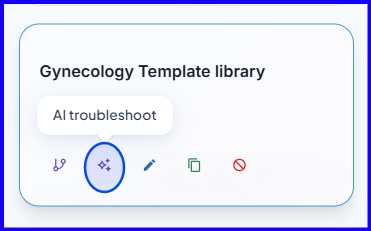
If a template consistently produces unexpected output, use the Troubleshoot tool. Click the troubleshoot icon on a template card in the gallery to open the troubleshoot modal. This tool analyzes your template for common issues — conflicting instructions, ambiguous headers, or formatting problems — and suggests specific fixes.
To use it:
- From the template gallery, click the healing icon on a template card
- A modal opens asking you to describe the problem — for example: “The Assessment section is too brief” or “The Plan section should include follow-up timeline”
- Type your issue into the prompt field and click submit
- The AI analyzes your current template and generates an improved version
- Review the output in the result modal, then decide whether to apply the changes
Iterative Improvement Workflow
The recommended workflow for template optimization:
- Generate a note using the template on a real or sample transcript
- Review the output — identify sections that need adjustment
- Edit the template — use the Prompt Healer, Talk to Template, or direct header edits
- Regenerate the same transcript with the updated template
- Compare — check whether the output improved
- Repeat until the template consistently produces notes you are satisfied with
Most providers reach a stable template within 3-5 iterations.
Next Steps
Continue to Lesson 2.4 — ICD-10 & CPT Code Integration